How to Add Logo to Custom Receipts (Step-by-Step Guide)
Learn how to add logos to custom receipts online. Step-by-step guide to upload, position, and export branded receipts using ReceiptEditor.

Adding your logo to a receipt isn’t just about visuals — it’s about branding, trust, and professionalism. A well-placed logo makes your receipt look official, helps customers recognize your business instantly, and keeps your brand consistent across every transaction.
In this guide, you’ll learn how to add a logo to custom receipts using ReceiptEditor, plus best practices for file formats, placement, sizing, and export — all optimized for both digital and printed receipts.
Why Add a Logo to Your Receipt?
Before we get into the steps, here’s why logos on receipts matter:
Builds brand recognition and credibility
Makes receipts look professional and legitimate
Helps customers identify your business later
Improves consistency across invoices, receipts, and records
Ideal for expense tracking, accounting, and reimbursements
Whether you’re creating receipts for a store, freelancer work, online orders, or expense records, a logo instantly elevates the result.
Preparing Your Logo for Receipts (Best Practices)
To get clean, sharp results, prepare your logo properly before uploading it to ReceiptEditor.
Recommended Logo Settings
File format: PNG (best), JPG, or GIF
Transparency: Use PNG with transparent background when possible
Resolution: At least 300 DPI for print-ready receipts
Color mode:
RGB → digital receipts
CMYK → printed receipts
Background: If transparency isn’t available, use a white background to match most receipt templates
Pro Tip
Always test your logo on both light and dark receipt backgrounds to make sure it remains readable.
Where to Find Logo Tools in ReceiptEditor
All logo controls are located inside the receipt editor itself.
Open the receipt editor
Look at the left sidebar
Select the Logo section
This panel includes everything you need to upload, resize, position, and fine-tune your logo directly on the receipt.
How to Upload a Logo to a Custom Receipt using ReceiptEditor
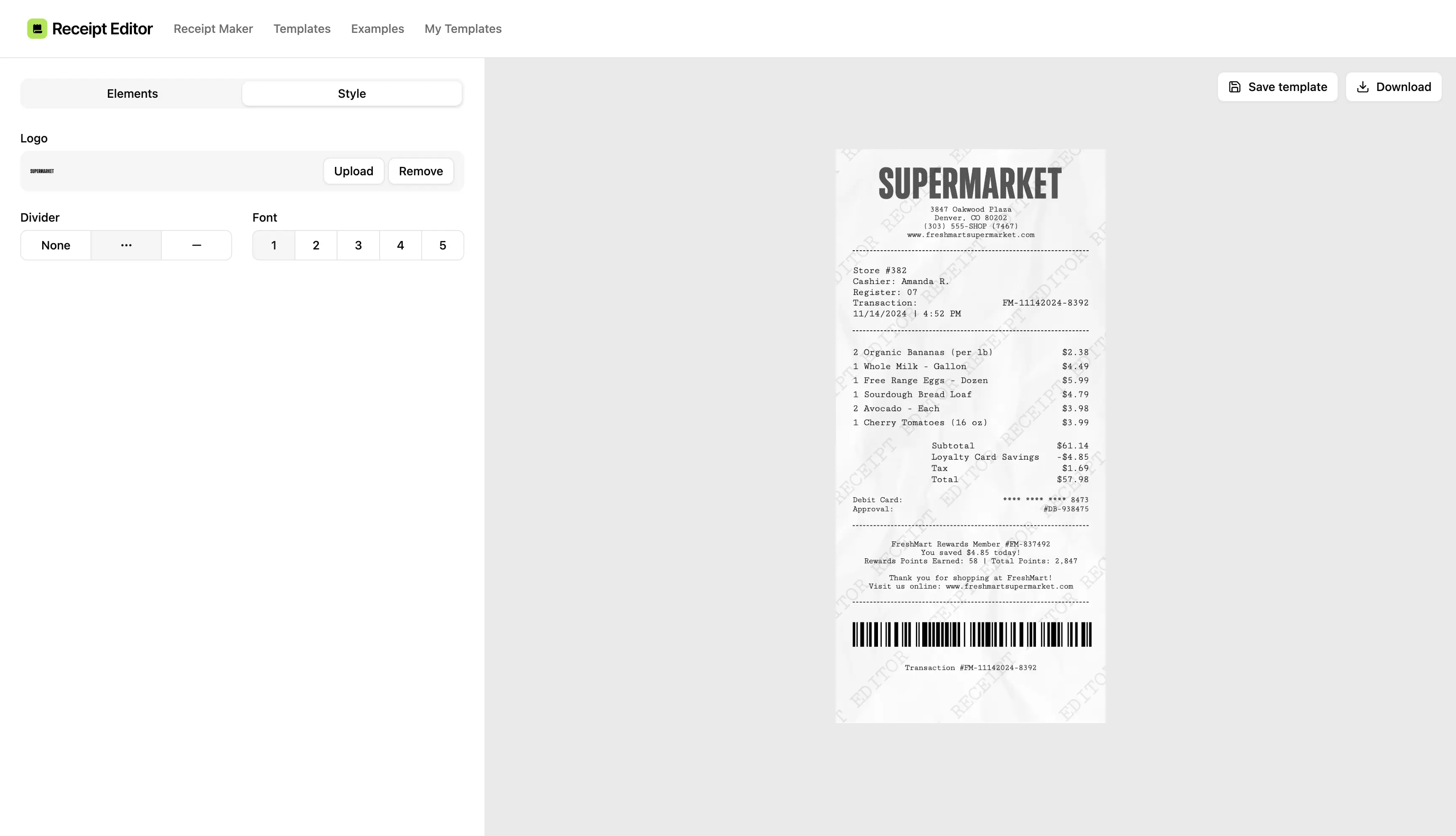
Follow these simple steps to add your logo:
Step 1: Upload Your Logo
Click Upload Logo in the Logo section and select your file (PNG, JPG, or GIF).
Step 2: Resize the Logo
Once uploaded, your logo appears on the receipt. Use the resize handles and keep proportions locked to avoid distortion.
Step 3: Position the Logo
Drag the logo anywhere on the receipt layout.
Best placement:
Upper third of the receipt
Above business details or store name
This placement looks professional and mirrors real printed receipts.
Ensuring Proper Logo Placement
Before finalizing your receipt, double-check these details:
Alignment: Center the logo horizontally
Spacing: Leave at least 20px of white space around it
Consistency: Align with business name and header text
Preview: Always use preview mode before exporting
Also check how the logo looks on smaller screens, especially if the receipt will be viewed on mobile.
Logo Display & Visual Adjustments
ReceiptEditor includes tools to make sure your logo blends perfectly with the receipt design.
Brightness & Contrast Tips
Lower brightness by 10–15% for white backgrounds
Increase contrast to sharpen edges
Boost brightness up to 20% for darker receipt styles
Always preview after each adjustment — small changes make a big difference.
Saving Logo Templates for Future Receipts
Once your logo placement and styling are perfect, save the receipt as a template.
Benefits of saving templates:
Keeps branding consistent
Speeds up future receipt creation
Avoids repeating logo adjustments
Use clear template names like:
“Store Receipt – Logo Header”
“Freelance Receipt – Minimal”
Exporting Your Receipt with Logo
When you’re ready to finish:
Export your receipt as a print-ready PDF
Ideal for emailing, printing, or record-keeping
Always check Print Preview before downloading
The exported receipt will match exactly what you see in the editor.
Final Thoughts
Adding a logo to custom receipts doesn’t have to be complicated. With ReceiptEditor, you can upload, position, and fine-tune your logo in minutes — no design skills required.
A clean logo, proper spacing, and subtle adjustments can turn a basic receipt into a professional, branded document that looks authentic and trustworthy.
If you want your receipts to look real, polished, and on-brand, start by adding your logo the right way.